
Setup Guide
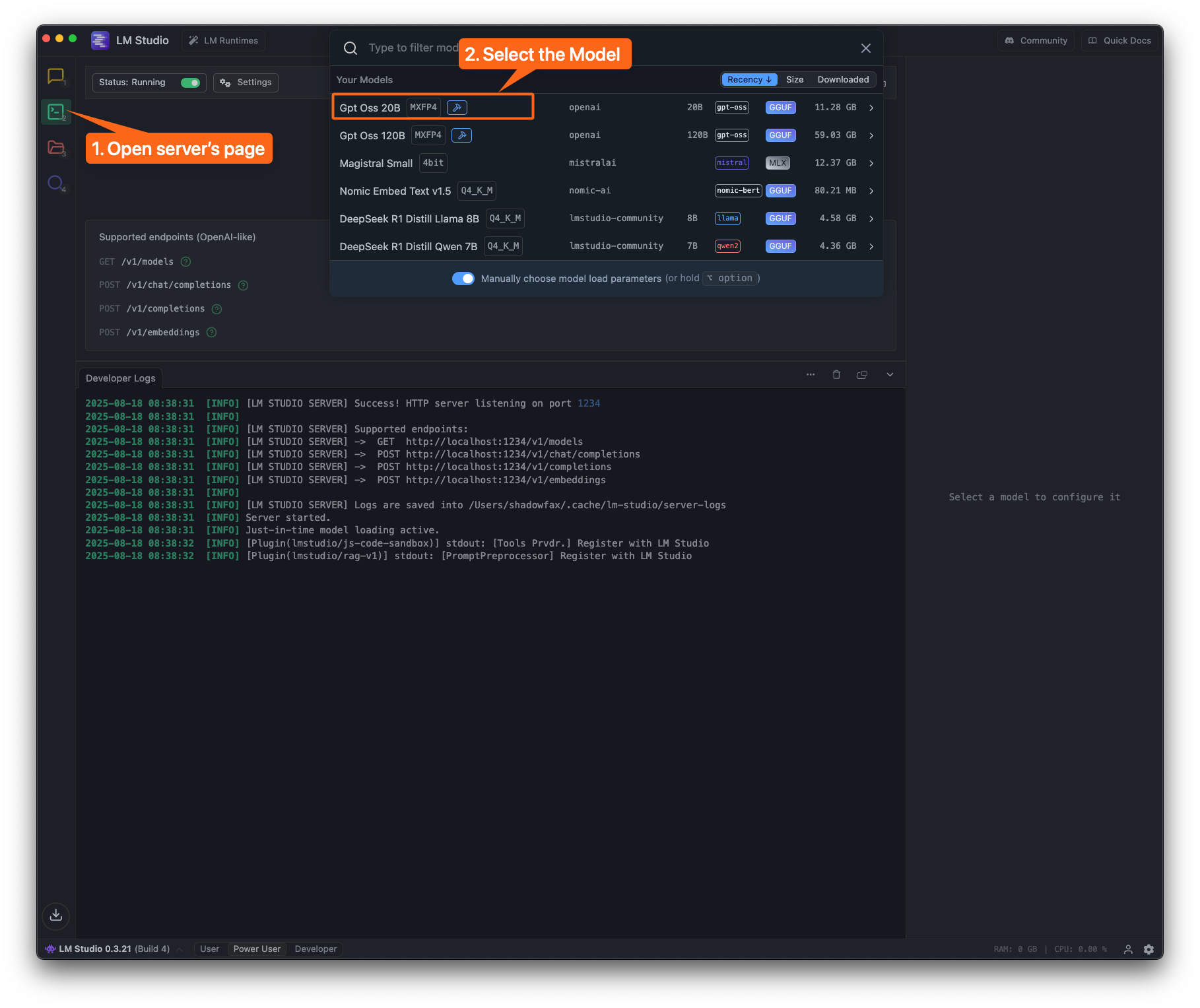
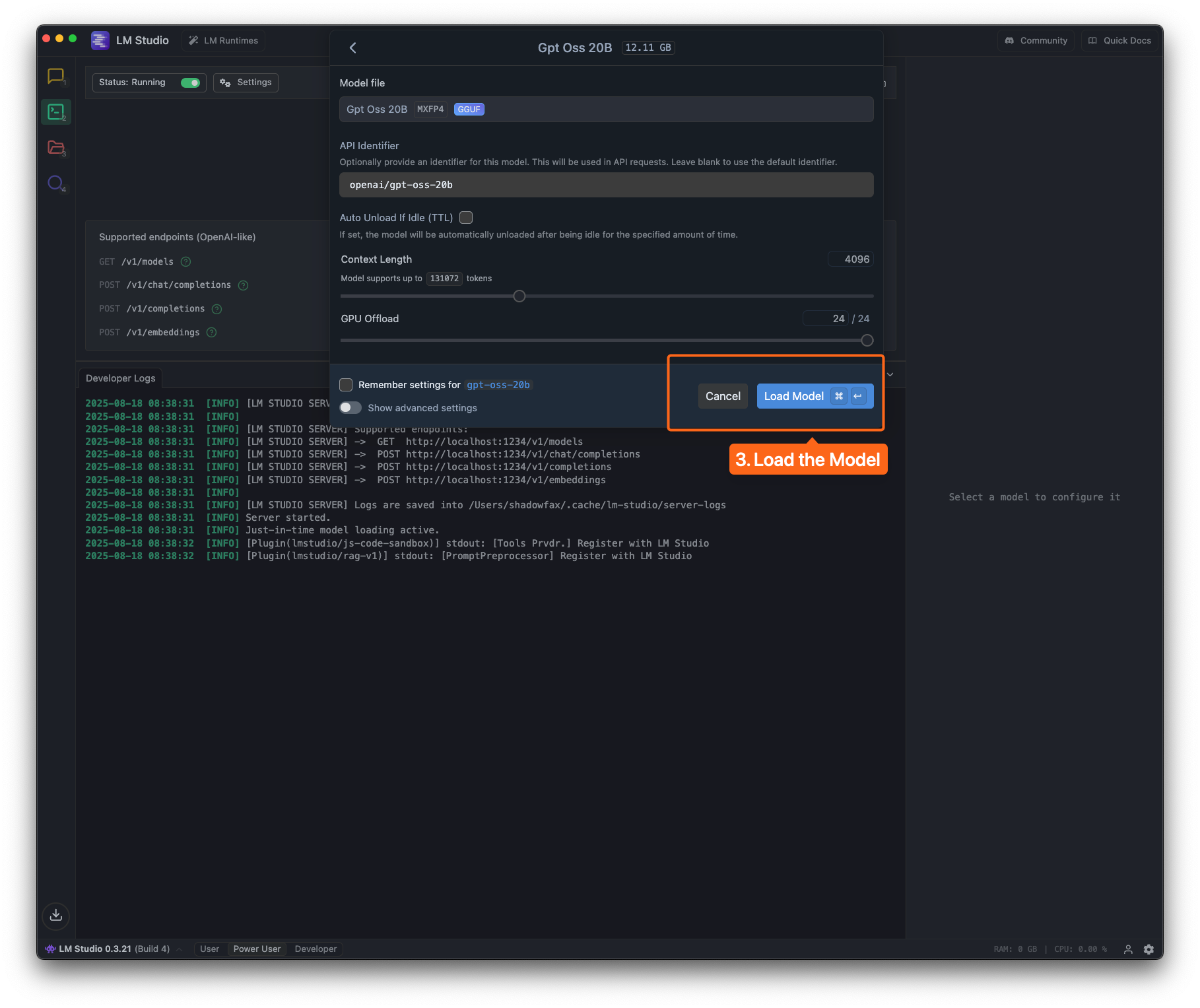
Configure in eGovernmentOS
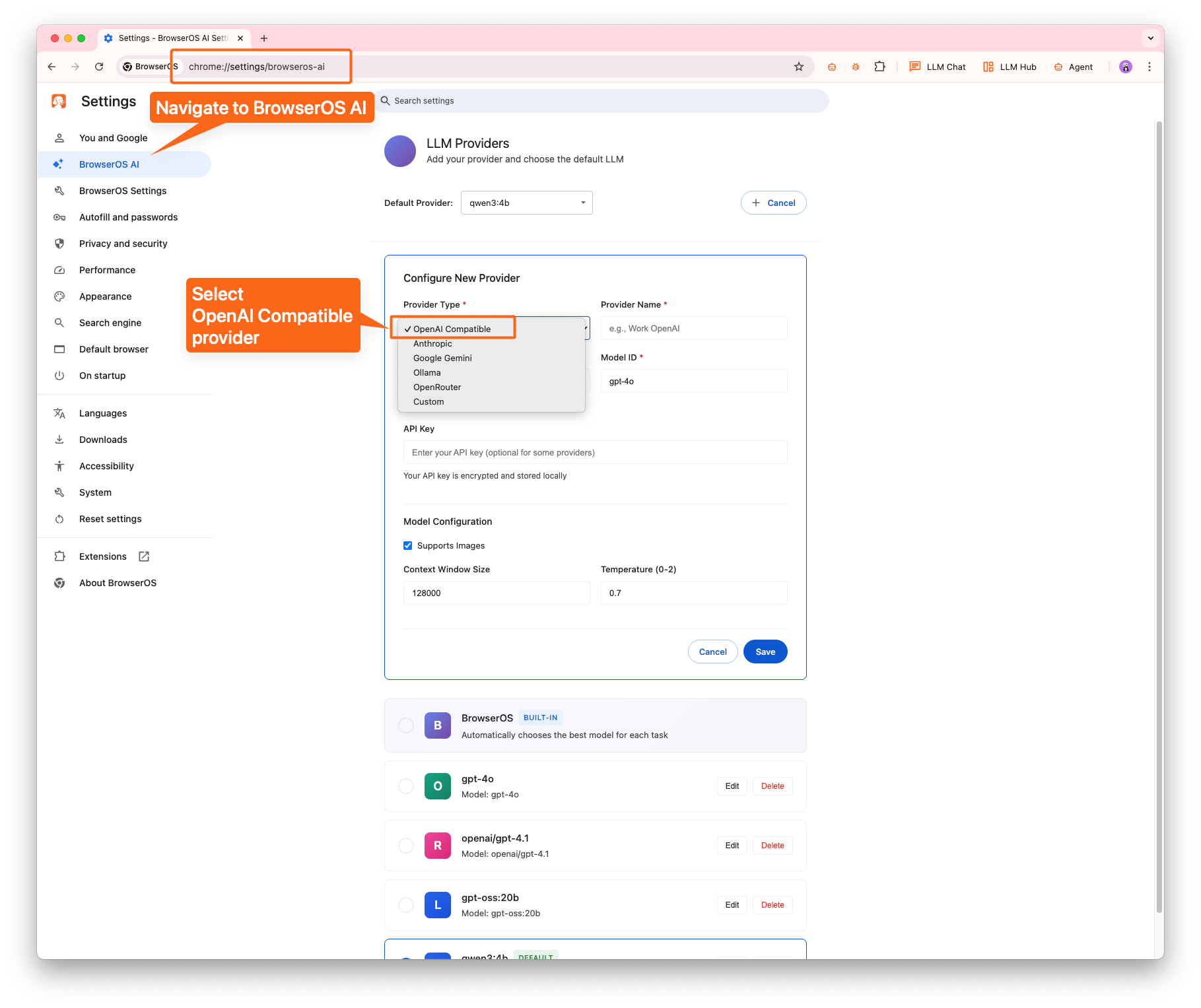
- Navigate to
chrome://egovernmentos/settingsor click the Settings icon on the new tab page - Click Add Provider
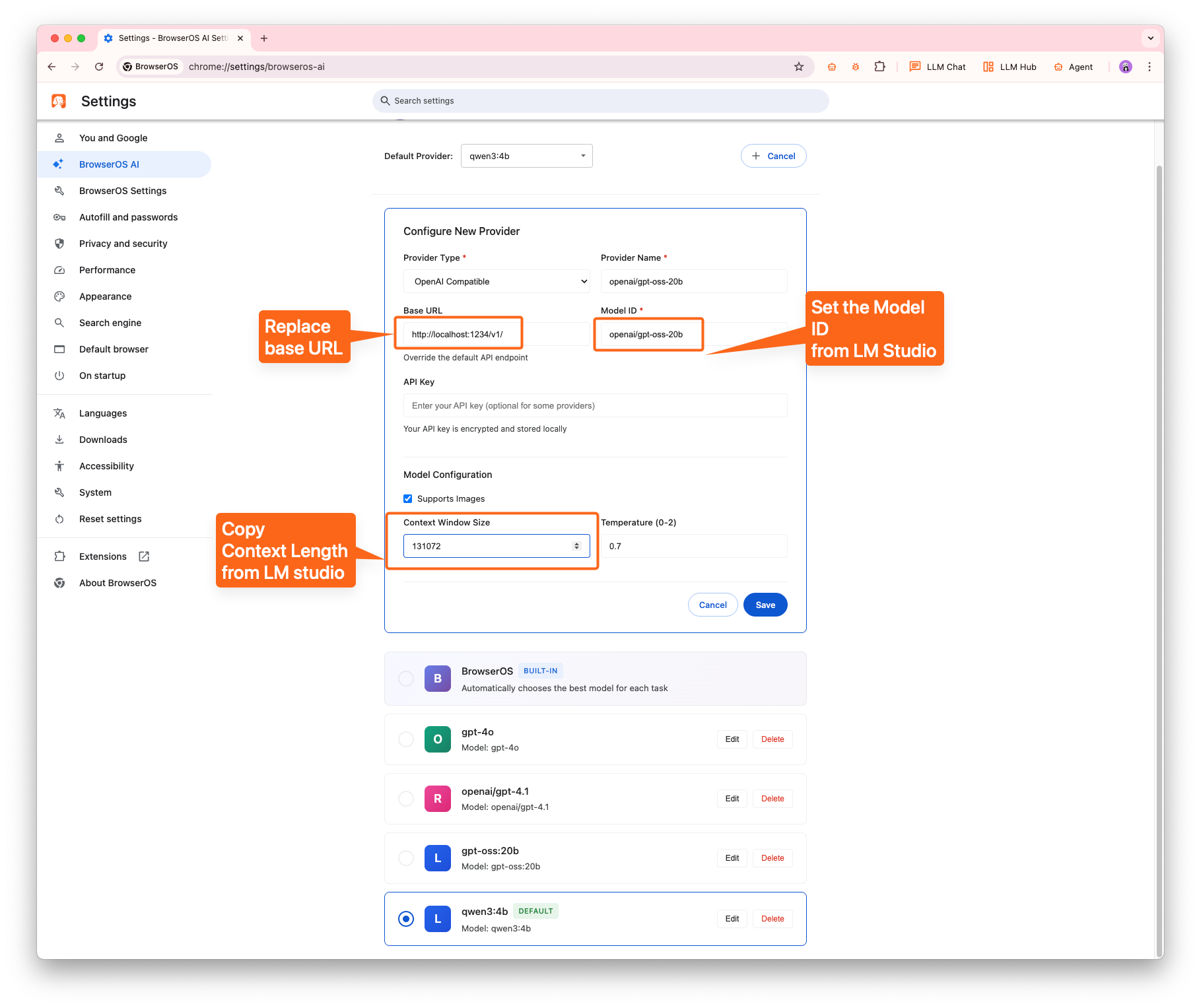
- Select OpenAI Compatible in the Provider Type dropdown
Configure the Model
- Replace the Base URL with LM Studio URL (default:
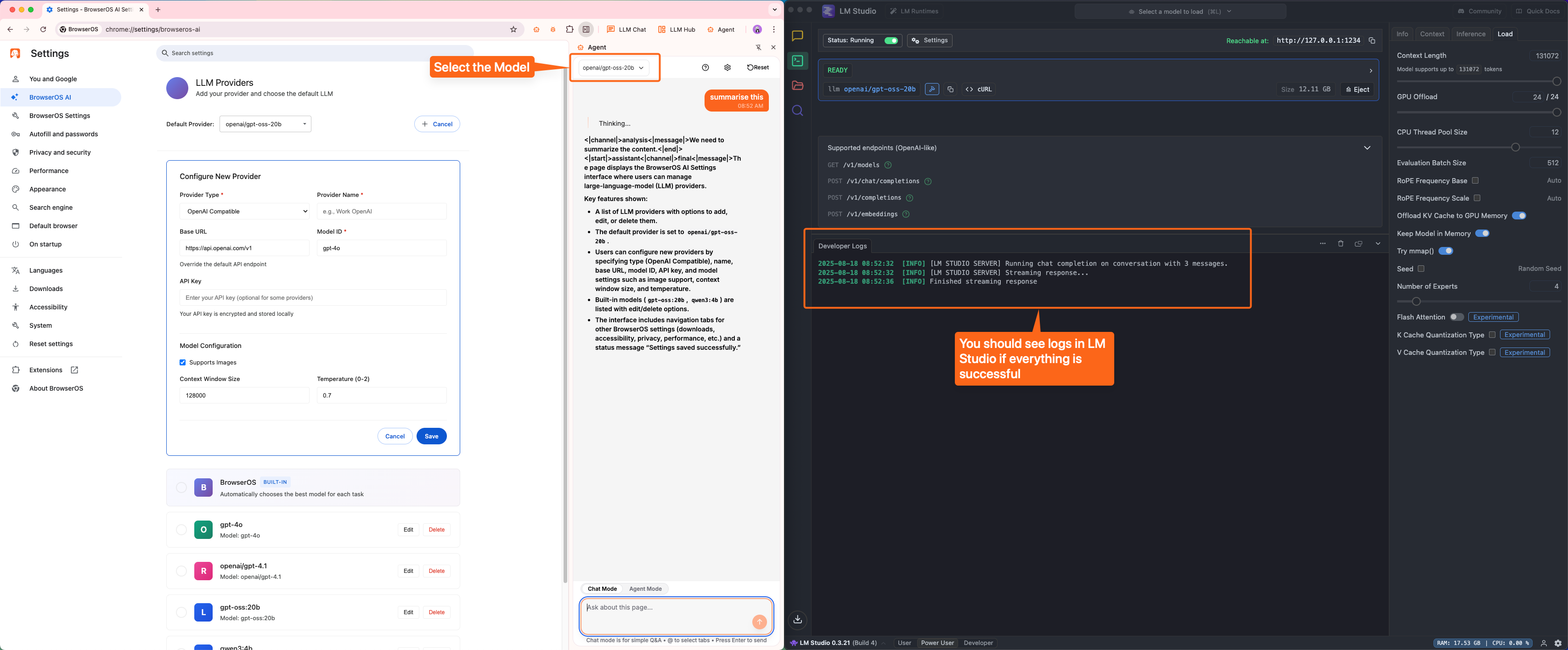
http://localhost:1234/v1/) - Set the Model ID to the one you loaded in LM Studio
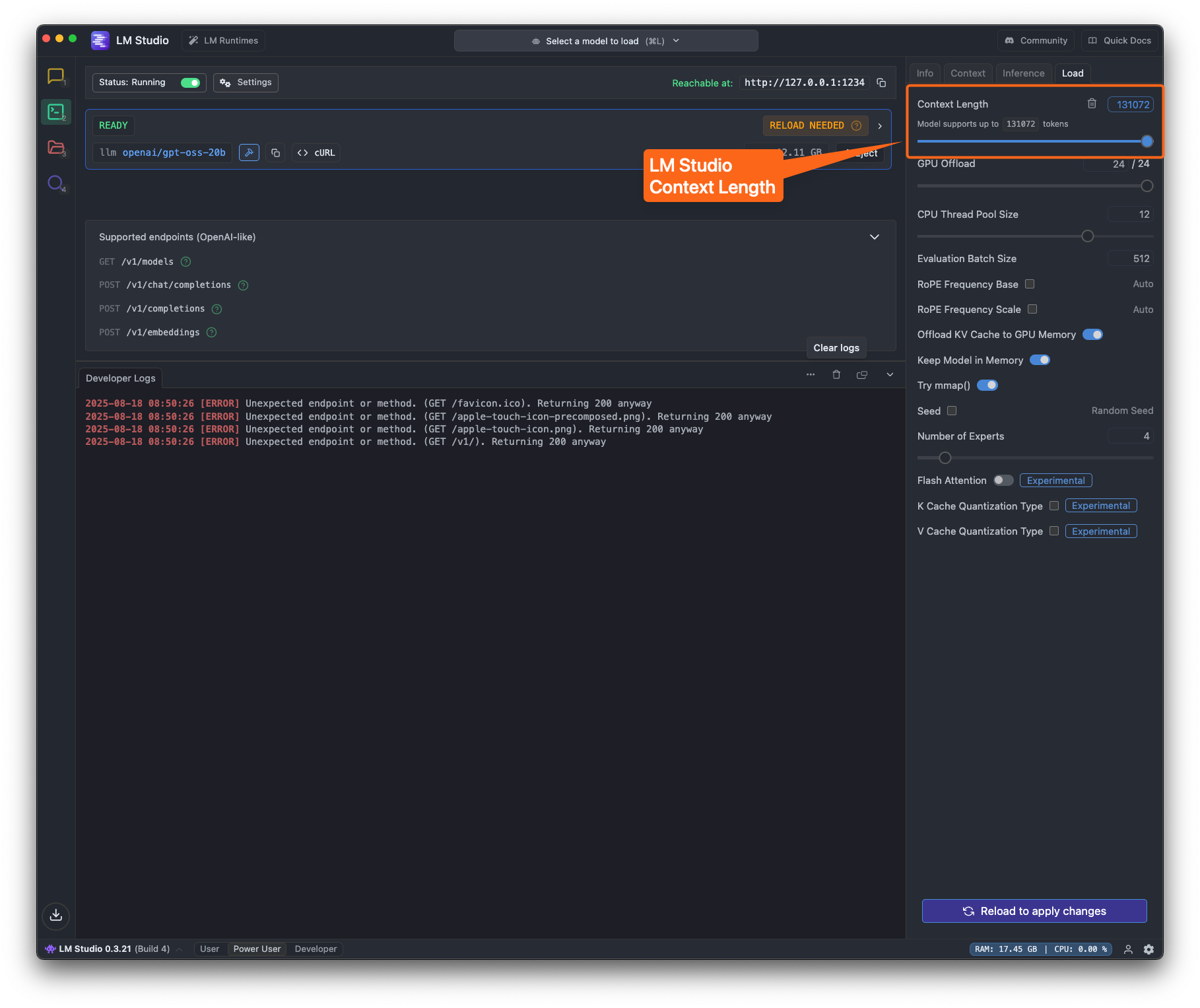
- Important: Set the Context Window Size to match your LM Studio configuration
Configuration Details
Default LM Studio Settings
Default LM Studio Settings
- Base URL:
http://localhost:1234/v1/ - Provider Type: OpenAI Compatible
- Context Window: Depends on your model and hardware (typically 2048-32768)
Supported Models
Supported Models
LM Studio supports various models including:
- OpenAI GPT-OSS series
- LLaMA and derivatives
- Mistral models
- And many more from Hugging Face