Get your API key
Visit openrouter.ai, sign up, and create an API key. OpenRouter shows your key right on the homepage under “Get your API key”.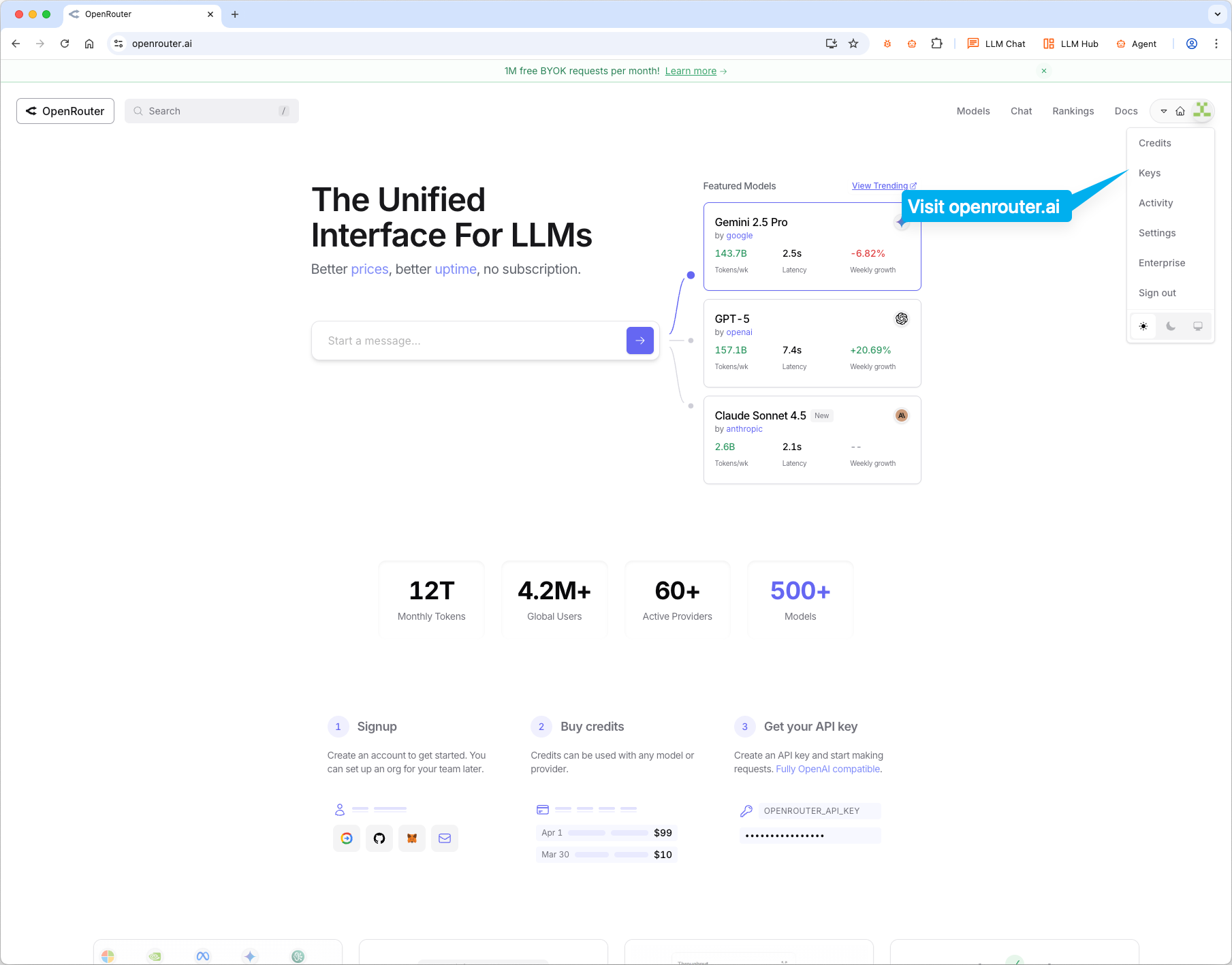
Configure eGovernmentOS
Step 1: Add OpenRouter provider
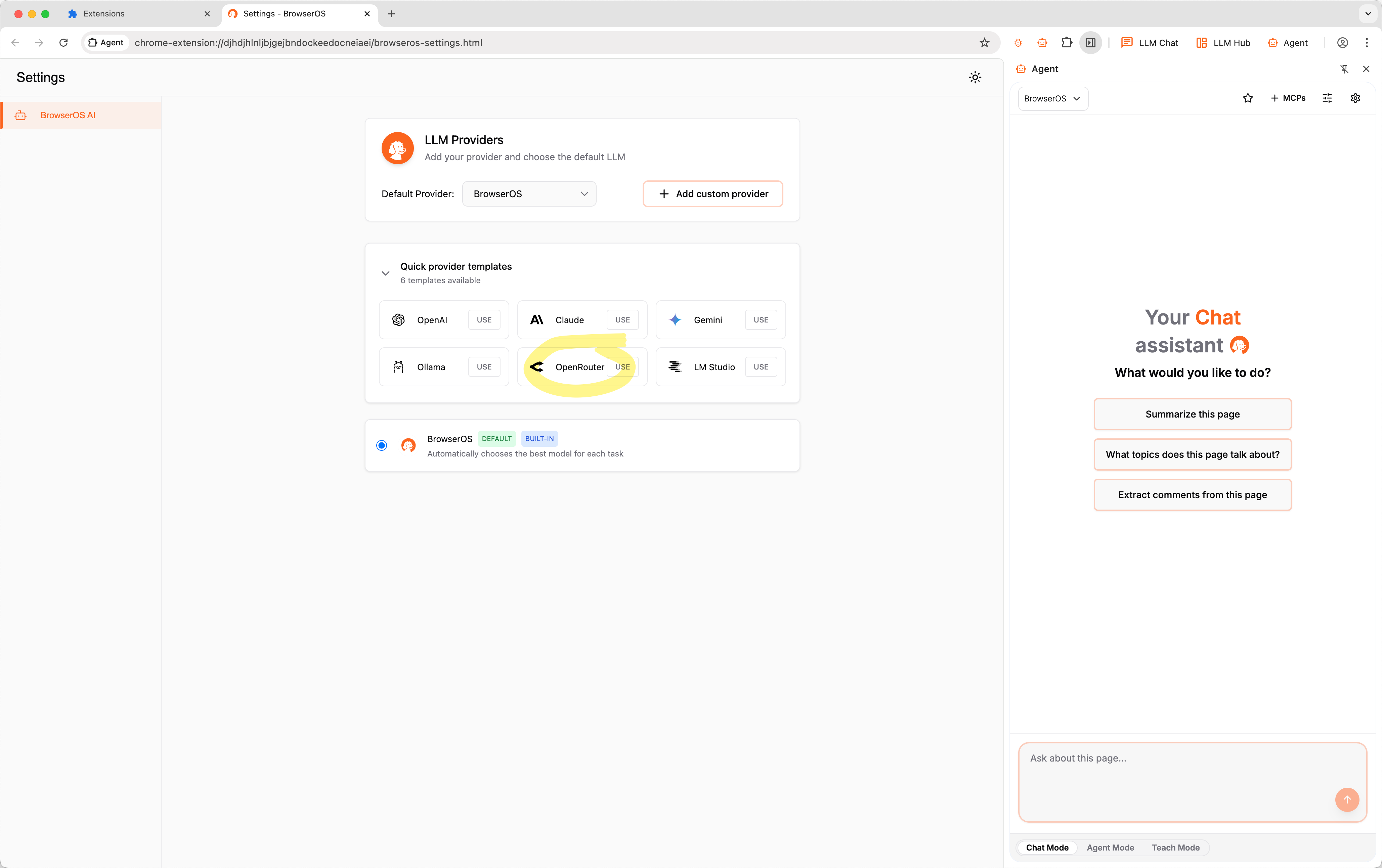
Navigate tochrome://egovernmentos/settings or click the Settings icon on the new tab page, then click USE on the OpenRouter card.
Step 2: Pick a model
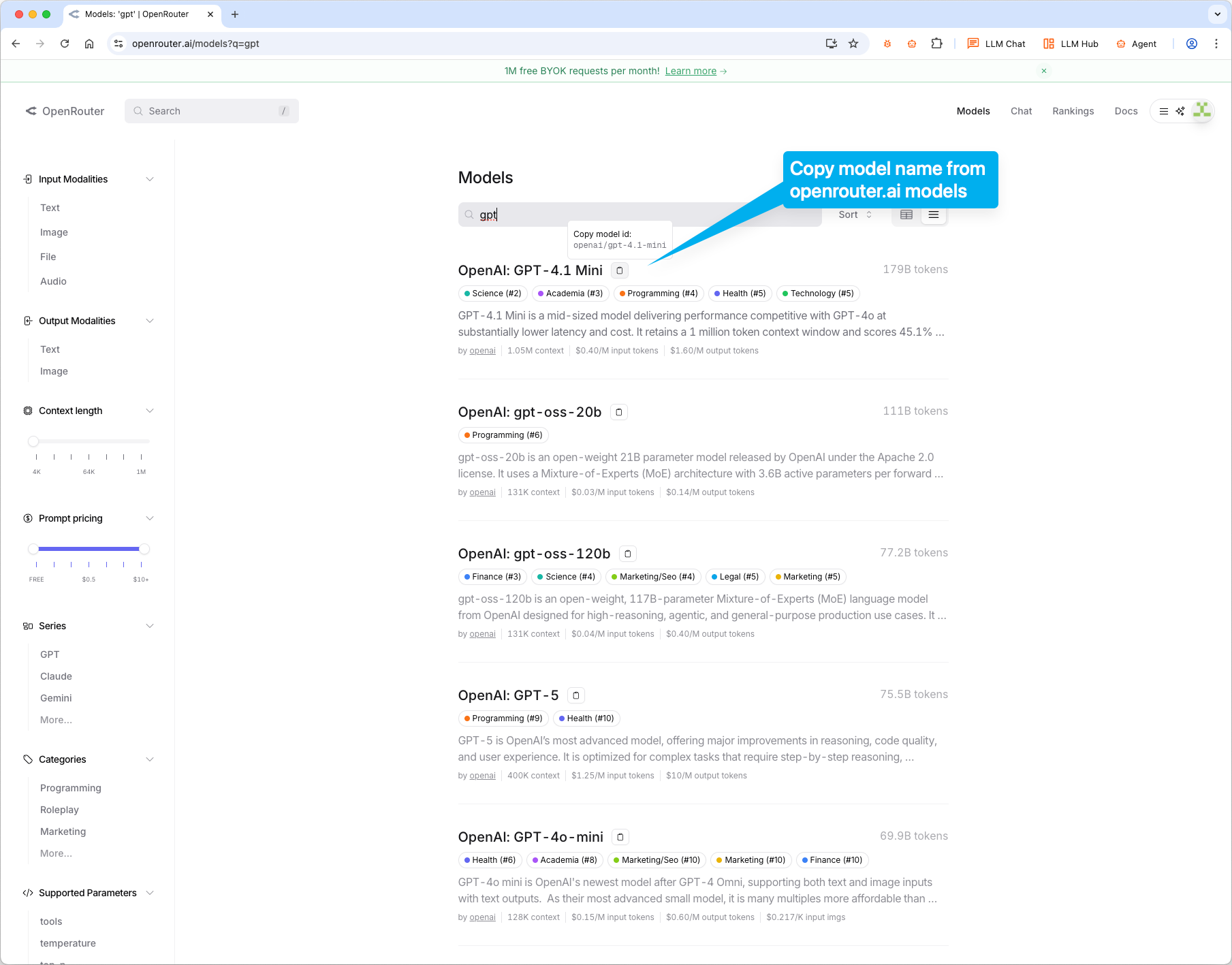
Visit openrouter.ai/models and find the model you want. Click on it to copy the model ID (likeopenai/gpt-4.1-mini).
Step 3: Configure your provider
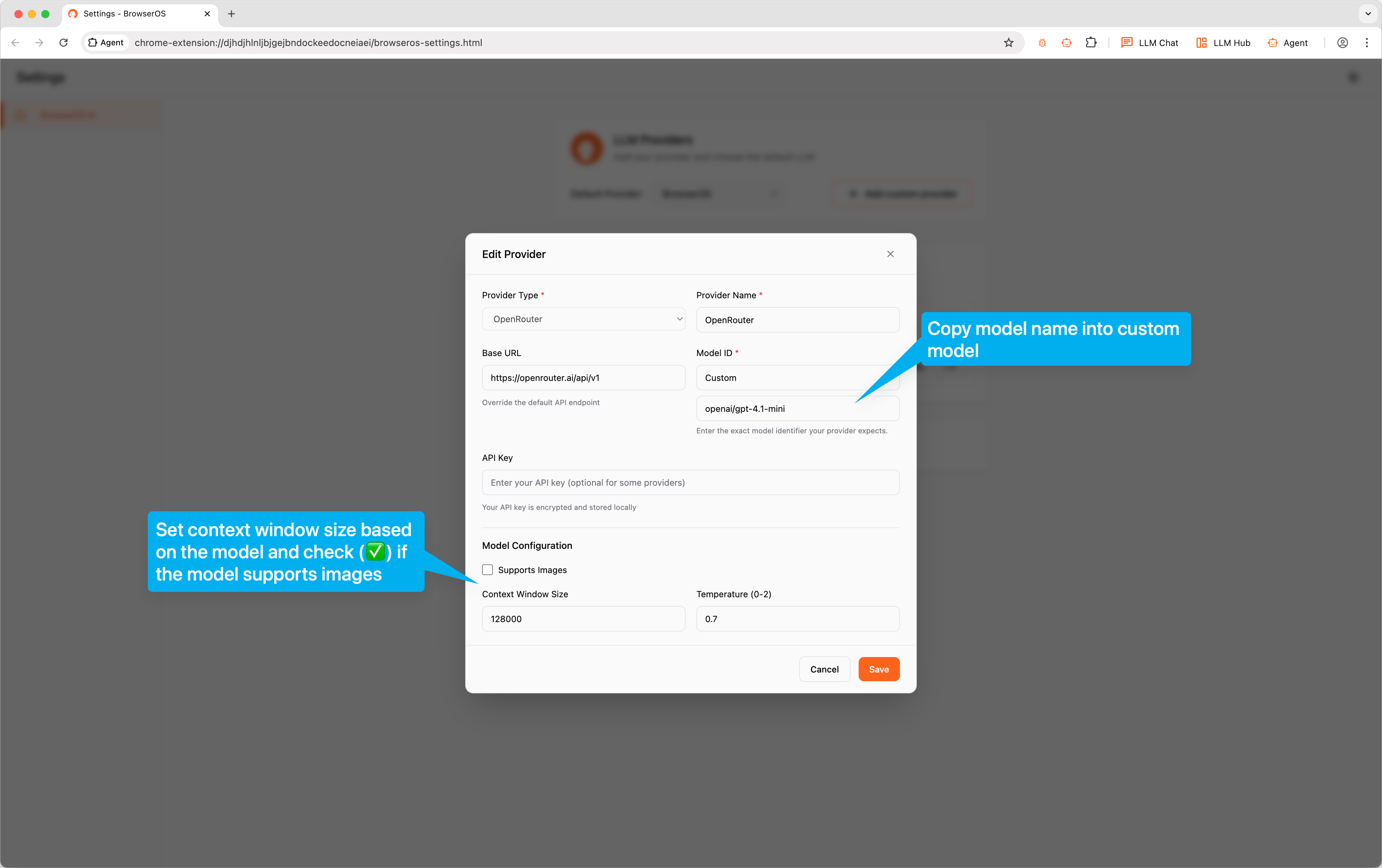
In eGovernmentOS, paste the model ID into Model ID field. The model ID should be in the format shown under “Custom” (e.g.,openai/gpt-4.1-mini). Paste your OpenRouter API key, set Context Window Size based on the model, and check Supports Images if the model supports it. Click Save.